
Configuration used in this manual. This help and its screenshots describe a Confluence-like setup: child pages are enabled, while notes and binders are disabled. Notes and binder controls are therefore not shown.
In the active xxx.application.conf file, this corresponds to use-childpage = true, use-notes = false, and use-binders = false.
user-manual work-in-progess
Page view and page layout
The page view is the standard screen for reading and working with a page.
Most users arrive at a page by following a link from another page, opening a result from search, choosing a page from a catalog or list, or opening the web application home page. The home page is itself a normal page.
A page has one main content area, shown in the center of the page view. It can also have notes, attachments, labels, and comments, which appear around or below the main content.
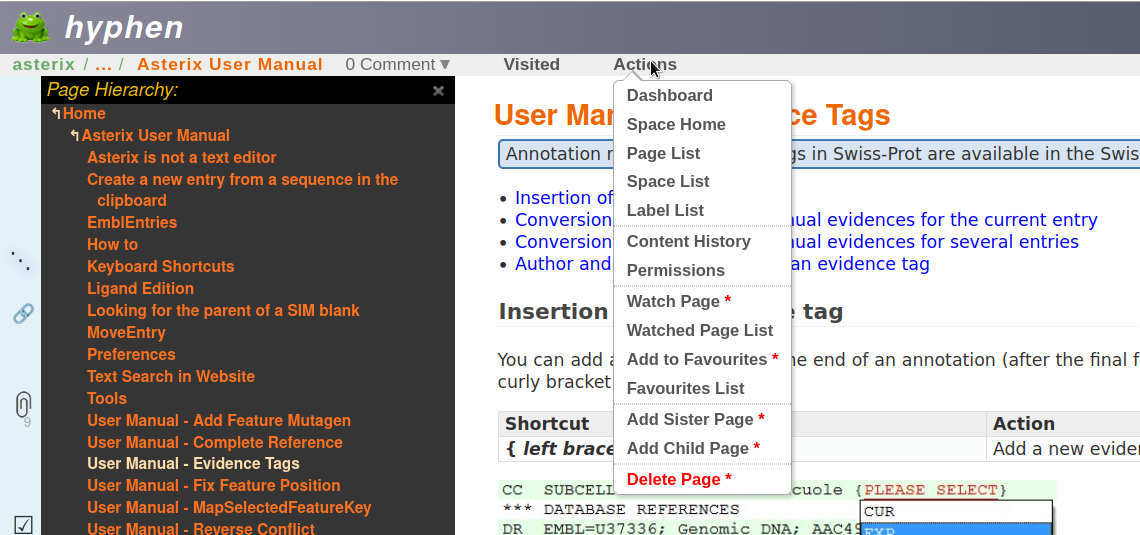
Main areas of the page
The page view contains the following areas:
- Top application bar. The dark header contains the application name, the global search field, the logged-in user, and session links.
- Page path and page actions. The line below the header shows the space key, the binder when binders are enabled, the parent-page path, the comment counter, the Visited menu, the Actions menu, and the
...information panel. - Left navigation strip. The vertical icons open the hierarchy, links, and attachments panels. Small counters appear when links or attachments exist.
- Main page area. The center column contains the page title, creation and update stamps, the rendered page content, labels, optional notes, and page comments.
- Context panels. Depending on what you open, the page view can show the hierarchy tree, incoming and outgoing links, or the attachments panel without leaving the page.
What the first screenshot shows
In the example:
- the page hierarchy panel is open on the left
- the Actions menu is open from the page navigation bar
- the current page body remains visible on the right
Actions menu
The Actions menu groups navigation links and page-level operations. The exact entries depend on the page, your login state, your permissions, and system options.
Typical entries include:
- navigation links, such as Dashboard, User Home, Space Home, Page List, Space List, and Label List
- page tools, such as Atom view, Content History, and Permissions
- personal actions, such as watching or unwatching the page and managing favourites
- editing actions, such as adding a note, sister page, or child page when you are allowed to do so
- administrative actions, such as deleting the page when you have sufficient rights and the page has no children
Actions that you are not allowed to use are shown as unavailable instead of being executed.
"Page info" panel
Only present when user is logged in.
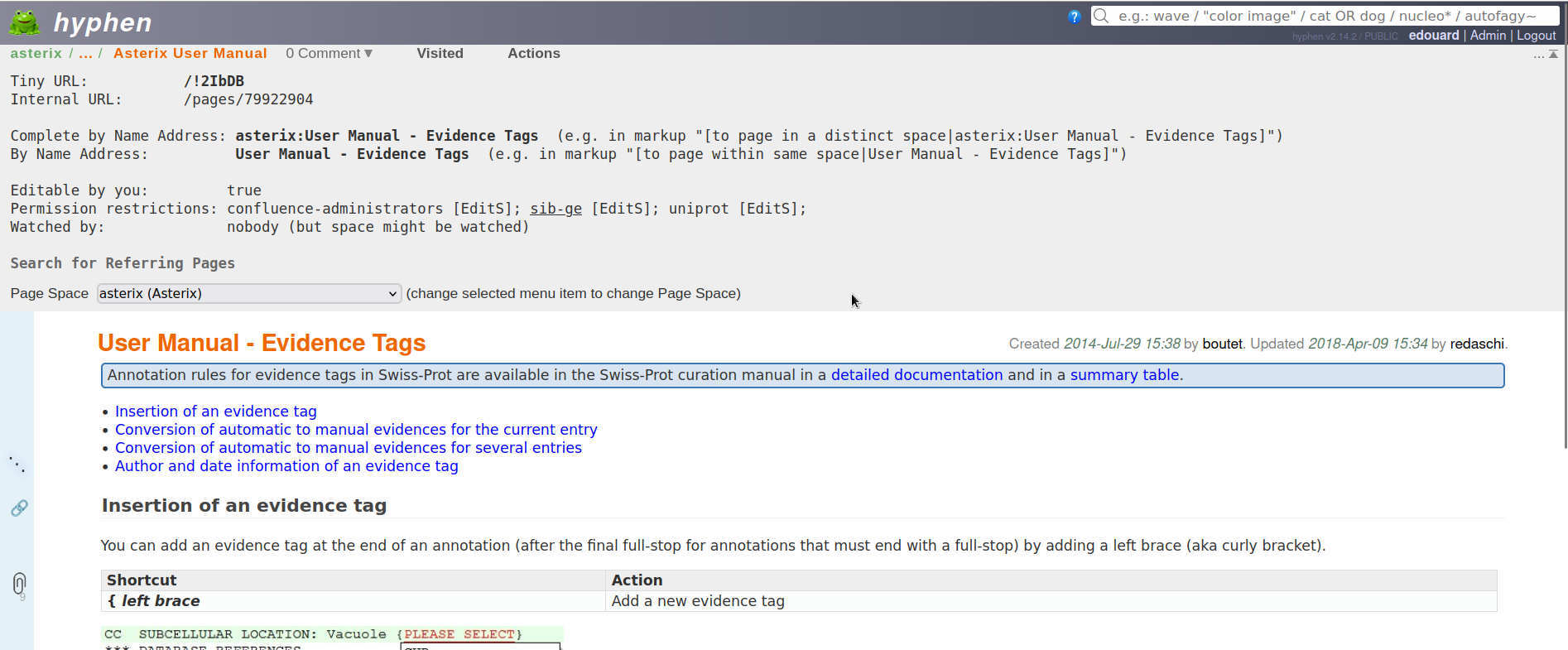
In the example:
- the page details panel is expanded (panel view is toggle-able, by clicking on
...+ arrow on the top right) - the panel shows the tiny URL, internal URL, name-based link addresses, editability, permissions, and watch information
- the page-space selector is visible because the user can administer that page
- the normal page content remains visible below the panel
Information panel
The ... button in the page navigation bar opens an information panel above the page content.
The panel can show:
- the tiny URL and the internal page URL
- the complete page-by-name address
- the short same-space address used in wiki links
- whether the page is editable for your account
- the current permission restrictions
- who is watching the page
- a link that searches for pages referring to the current page
Depending on permissions and configuration, the panel can also offer:
- a page-space selector for moving the page to another space
- a local search box that searches below the current page when the page has children
Page hierarchy and side panels
When page hierarchy mode is enabled, the hierarchy icon opens a tree that shows the current page in context: ancestors above it, siblings at the same level, and descendants below it. The current page is highlighted inside the tree.
If page hierarchy mode is not enabled, the same side panel shows siblings instead.
The other side icons open:
- Links panel. Lists pages that link to the current page and shows outgoing links found on the page.
- Attachments panel. Lists files attached to the page. If you can edit the page, the panel also contains the upload form for new attachments.
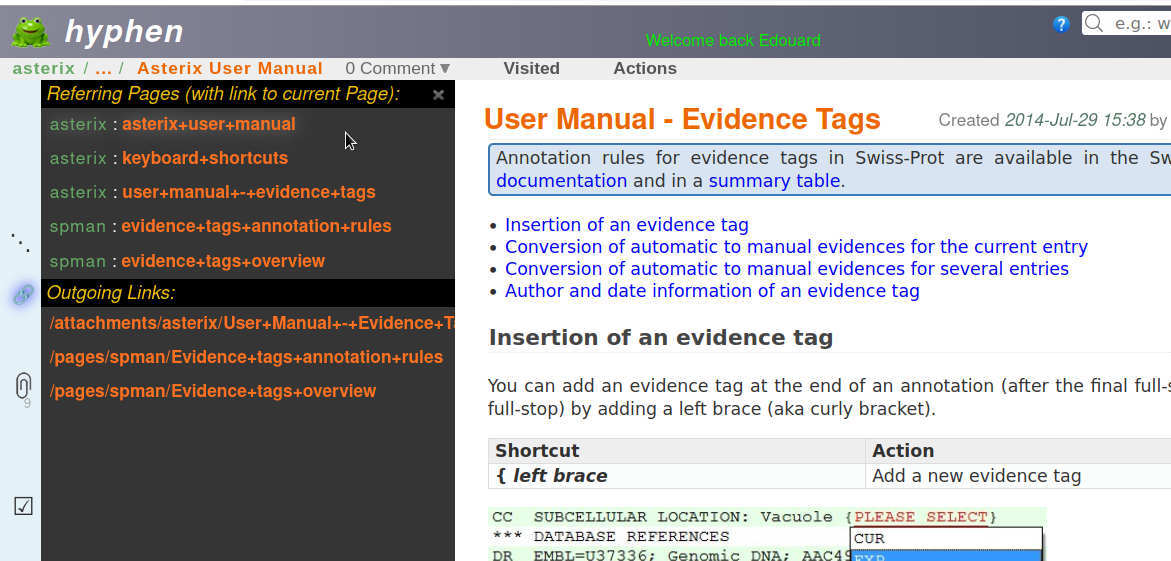
Links panel
The links icon opens a side panel with two possible sections:
- Referring Pages. Pages that contain a link to the current page.
- Outgoing Links. Links from the current page to other internal or external targets.
Internal page links are shown with their space key and page name. Outgoing links can also include attachment paths or external web addresses, depending on what is present in the page content.
The links icon is dimmed when no referring pages and no outgoing links are available.
In the screenshot:
- the upper part lists referring pages that point to the current page
- the lower part lists outgoing links found on the current page
- the page itself remains visible on the right while the links panel is open
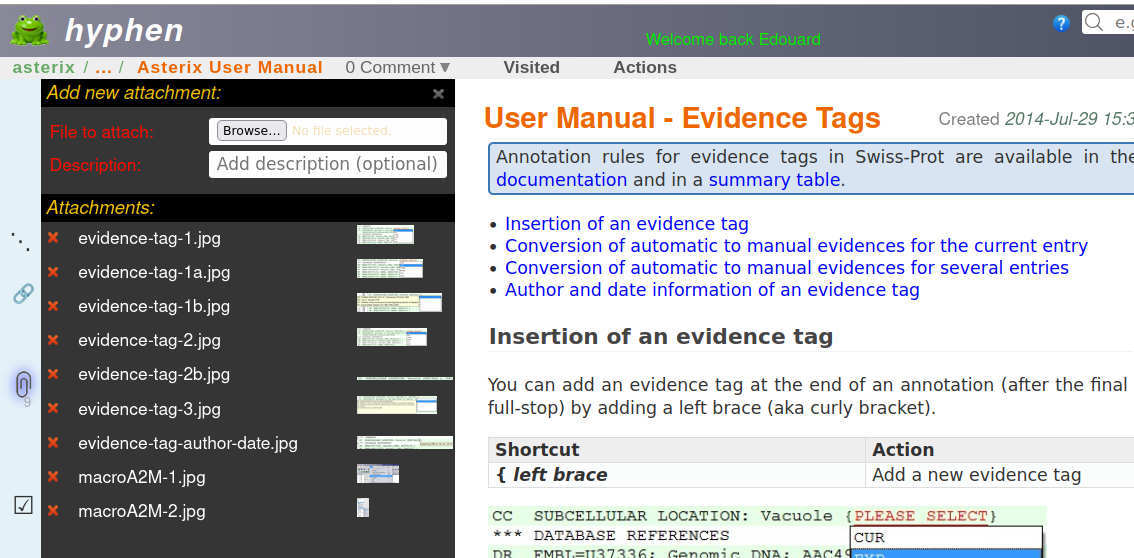
Attachments panel
The attachments icon opens a side panel for files attached to the page.
When you are allowed to edit the page, the top of the panel contains the attachment upload form:
- a file selector
- an optional description field
- upload and cancel buttons
Below the form, the panel lists existing attachments. For each file, Hyphen can show:
- the attachment name as a link
- a delete control when you are allowed to manage attachments
- a tooltip with description, identifier, timestamp, author, and file size
- a thumbnail preview when the attachment is an image
The attachments icon shows a counter when attached files exist. If you cannot edit the page and there are no attachments, the icon is dimmed.
In the screenshot:
- the upload form is visible at the top of the panel
- the panel lists several attached image files
- image attachments show thumbnails on the right side of the list
Page content structure
The standard page view shows the main page body first.
Below the main body, the page can also show:
- the details strip for the page content, including labels and an Atom identifier when present
- a notes table of contents when notes exist
- note blocks, each with its own title bar, wiki content, and wiki details strip
- the page comments panel, including the add-comment form for logged-in users
This means that a page has one central body. Notes are separate items with their own content, not extra sections inside the main page body.
Comments and everyday reading
The page view is not only the reading screen. It is also the place from which users reach most page-related actions:
- reading the main page body
- opening notes and comments
- checking page context through the hierarchy panel
- reviewing links and attachments
- opening editing or history actions from the page bar
For everyday use, the page view is the main entry point for both reading a page and managing its related content.
Editing a page
Page can be edited only when user is logged in. Pages are edited directly from the normal page view. First open the page you want to change, for example from another page, search results, a page list, or the application home page.
When you have permission to edit a page, small edit handles appear on the editable parts of the page.
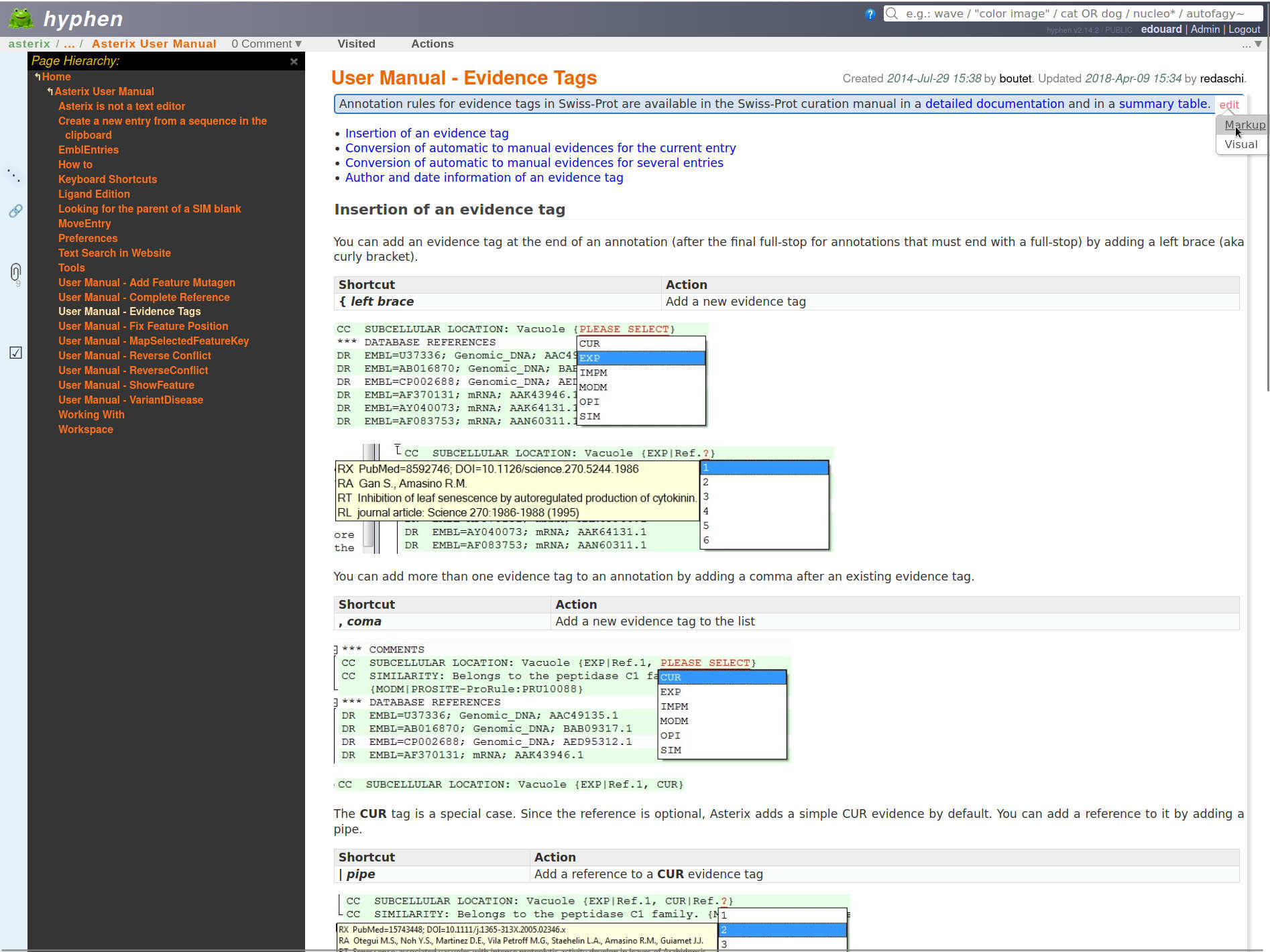
What the screenshot shows
In the example:
- the hierarchy tree is open on the left
- the page title and timestamps are visible above the page body
- the pointer is over the main page body, so the
edithandle is visible on the right - the edit menu is open for the main page body
- the edit menu offers Markup and Visual editing modes
Starting an edit
Editing is available only when you are logged in and the page is editable for your account.
To edit the main page body:
- move the pointer over the page content block
- click the small
edithandle shown on the right edge of the block - choose Markup to edit the page source
- choose Visual to use the WYSIWYG editor, when visual editing is available
The screenshot shows this moment: the page is still in reading mode, and the edit mode menu is open.
While editing
When the inline editor opens, the page content is replaced by an editor in the same position. For page content, the editor provides:
- a save action that updates the page content
- a cancel action that closes the editor and releases the lock
- a help link for the active markup language
If you leave the page while an inline edit is still open, the browser warns that unsaved changes may be lost.
Editing locks
Editing is lock-based. When you start editing, Hyphen first tries to lock the content you are editing.
If the lock is granted, editing starts normally.
If another logged-in user already holds the lock for the same content, inline editing is refused. Hyphen shows who is editing it and when that edit session started.
If you try to edit the same content again while you already hold its lock, Hyphen warns that you may still have the editor open in another browser tab. It then refreshes the lock for the current edit session.
Locks are not permanent. They expire after a configured timeout so that a forgotten browser tab does not block editing indefinitely. In the default configuration, locks expire after 4 hours. When a lock has expired, the next editor can take it over, and Hyphen warns that the previous lock was stale.
If a lock remains after a browser tab was closed unexpectedly, a super-user administrator can remove it from the Admin page lock list. If you are blocked by a lock and cannot wait for it to expire, contact an administrator.
Other editable page elements
Other page elements use the same inline editing system:
- Page title. The title line can be edited in place from the page header.
- Binder. When binders are enabled, double-click the binder in the path line to edit it.
- Note title and note body. Notes use the same inline editor as the main page body.
- Comments. A comment body can be edited in place when you are allowed to edit that comment.
Related actions
From the same page view, you can also:
- add a note from the Actions menu
- add a sister page or child page when permissions allow it
- open the attachments panel and upload a file
- add labels from the page details
- open comments and add a new comment
The regular page view is therefore both the main reading screen and the main entry point for everyday page maintenance.
Page catalog
The page catalog lists the pages that you are allowed to view. Open it by choosing Page List from the Actions menu of a page. You can use the catalog without logging in, but it never shows pages that you are not allowed to view.
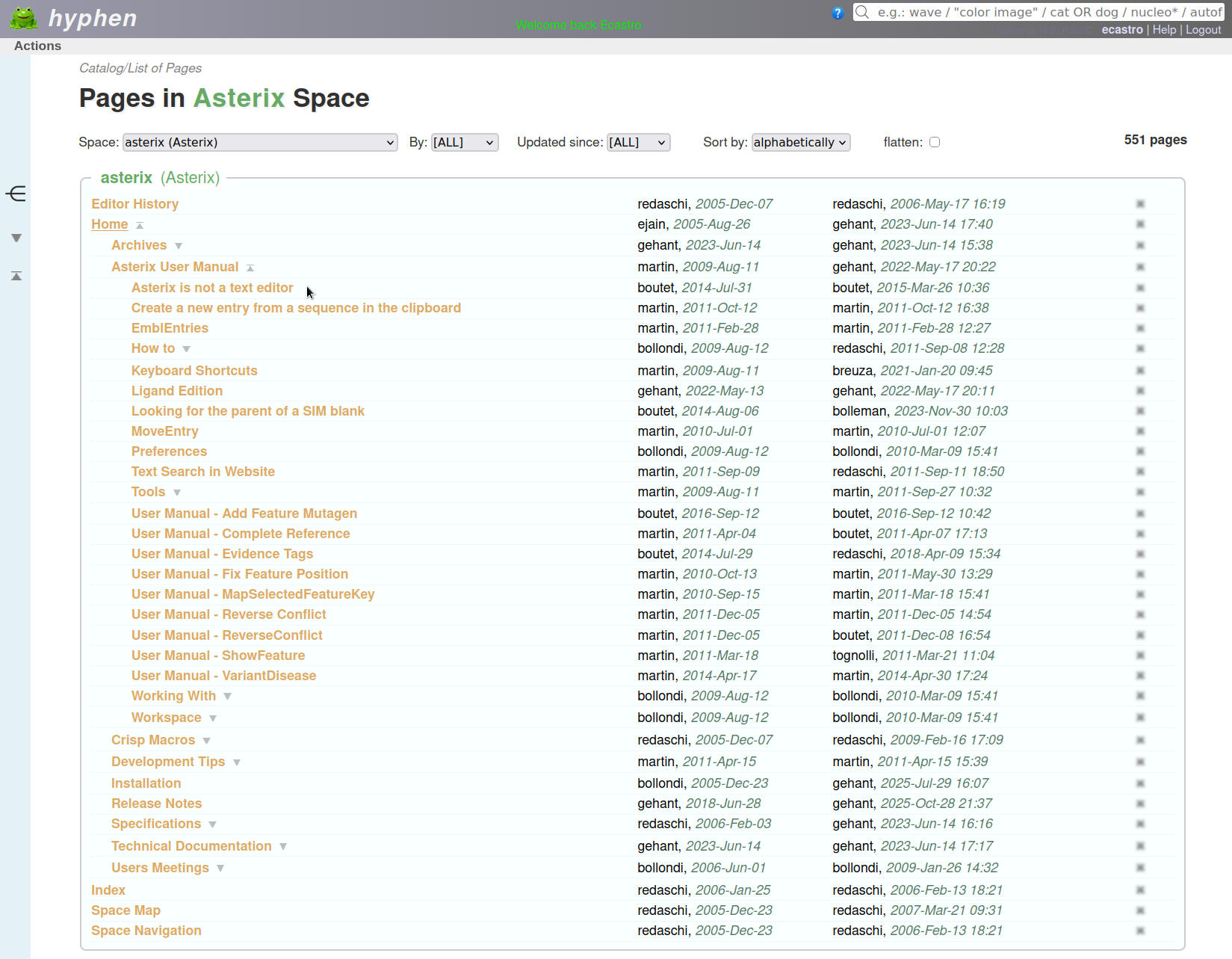
The screenshot shows the catalog for a regular user.
What the screenshot shows
In the example:
- the catalog is restricted to the Asterix space
- the page count is shown on the right of the filters
- pages are displayed as a hierarchy, with child pages indented below their parents
- the two date columns show when each page was created and last updated; logged-in users also see the corresponding user names
- the controls in the left panel open the graph, unfold all branches, or fold all branches of the page hierarchy
In this regular-user example, the delete icons are disabled, and no drag handles or add icon are shown. Moving and adding pages are available when your account has the required permissions.
Filtering and sorting pages
Use the controls above the catalog to narrow or reorder the list. Changing a selector applies the new setting immediately.
- Space limits the list to one space. Listing all spaces may be unavailable, depending on your account and the system configuration.
- Binder limits the list to one binder when binders are enabled.
- By shows pages created or last updated by the selected user.
- Updated since keeps only pages changed during the selected period, from the last hour up to the last year.
- Sort by orders pages alphabetically or by their creation or update time.
- flatten removes the parent-child nesting and displays the matching pages as a flat list when page hierarchy is enabled.
Large catalogs are divided into blocks. Use the arrows or the block selector beside the page count to move between them.
Browsing the page hierarchy
Pages are grouped by space and, when enabled, by binder. Click a page name to open that page. In hierarchy view, every page that has children has a fold/unfold button next to its name; use it to hide or show that page's descendants. The unfold all and fold all buttons in the left panel apply the same operation to all branches.
When you open the catalog from a page link, such as Page List in that page's Actions menu, the originating page is marked with a grey drop shadow. If it is not at the top level of the space, its ancestor branches are automatically unfolded so that the page is visible in the hierarchy.
The space name above a group links to the space home page. The home page is highlighted in the catalog.
Using the page graph
Click the graph icon at the top of the left strip to switch the graph panel on or off. The graph presents the same parent-child relationships visually:
- drag the background to move around the graph and use the mouse wheel to zoom
- click a node to emphasize that page, its children, and its grandchildren
- click a page label to open the page
- double-click the graph background to clear the emphasis and reset the view
Managing pages from the catalog
Additional controls appear when you are logged in and have the required permissions:
- drag a page by its ≡ handle and drop it on another page to make it a child of that page
- drop a page on the space heading to move it to the top level
- use the add icon at the bottom of a space group to create a new top-level page
- use the lock control to change public access when that access mode is enabled and you can administer the page
Hyphen asks for confirmation before moving a page or carrying out a destructive action. The catalog Actions menu can also provide shortcuts to the space home page, space permissions, watching the space, and adding a page, depending on your permissions.
Space catalog
A space groups related pages. The space catalog lists the spaces that you are allowed to view, ordered by their space key. When you are logged in, open it by choosing Space List from the Actions menu of a page or page catalog.
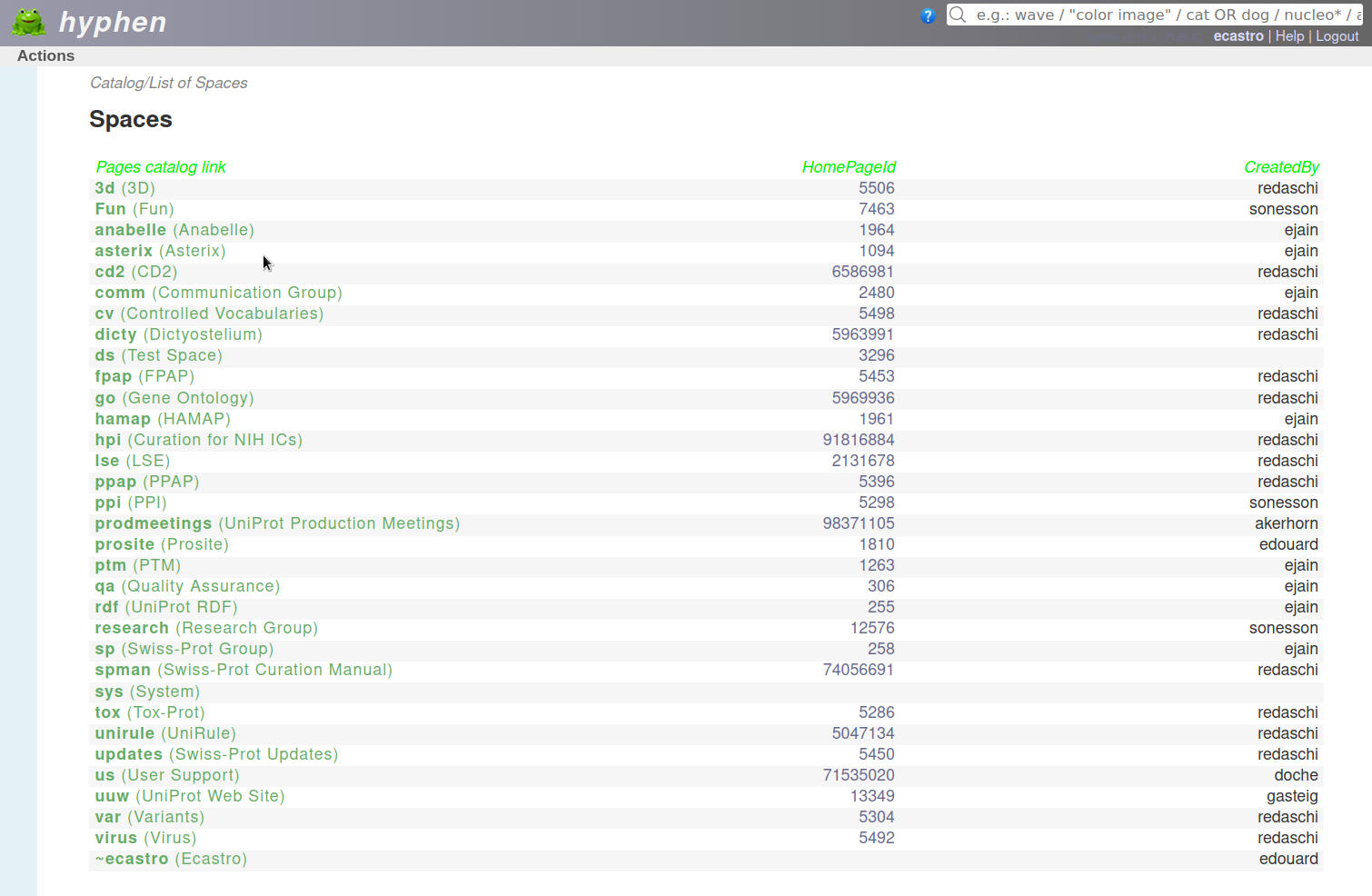
The screenshot shows the catalog for a regular user.
Browsing spaces
Click a space key in the Pages catalog link column to open the page catalog restricted to that space. For example, choosing asterix opens the list of pages in the Asterix space. Pages are still subject to their own access permissions.
The catalog Actions menu offers navigation to Pages List and, when available, Dashboard, Personal Home, and Previous Page.
Reading the catalog
Your catalog has the three columns shown in the screenshot:
- Pages catalog link. The space key followed by its name in parentheses. This link opens the space's page catalog.
- HomePageId. A link to the space home page, shown as its page number. An empty cell means that no home page is configured for that space.
- CreatedBy. The user name recorded as the creator of the space.
Regular accounts use this catalog to browse spaces. Creating a new space is reserved for super-user administrators; contact an administrator if you need one.